How to download the My Journey template for Powerpoint
1. On this same page, scroll down to the download block until you see the buttons. 2. Click on the button below the presentation features that says 'Download My Journey as a Free PowerPoint template'. 3. Once done it will start downloading a .pptx file that you can edit in PowerPoint. 4. If we do not have the powerpoint file we will direct you to the original source so you can download it. 5. If the fonts used in the template are not on your computer, you should download and install them for the template to display correctly. You can find the fonts in the original font link. 6.Source:slidesmania.com
How to download the template My Journey in Google Slides
1. Just like the powerpoint version, scroll to the bottom of the template features. 2. You can now click on the button that says 'Use My Journey as a Google Slides theme'. 3. A new window will open with a larger preview. If you want to use the template, click the Use template button in the upper right corner. 4. A copy of the document will be added to your Google Drive account and you will be able to edit, add or delete slides.
Preview
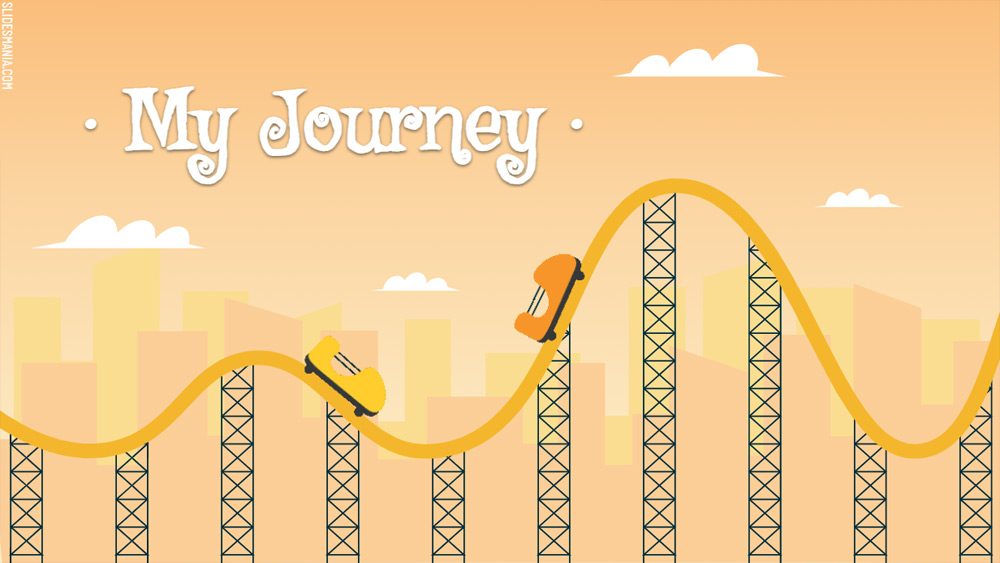
This interactive template works as an original infographic where you can highlight different milestones of your life or different events or steps of any theme.
This roller coaster theme comes with two sets of slides, one animated and a simple one that doesn't have the gifs of the cars. I have added a non-animated version in case the gif makes the deck run slowly. Use the one that works best for you.
I have used the theme colors for everything except the animated roller coaster cars (those are images and if you want to change their colors, you will have to change the accents first and then in the Theme, you will have to select the gifs and recolor them) To change the accents, click on Slide > Edit theme, click on colors and change the theme colors.
Text and background 1 and 2 and accent 1 are the colors that make the gradient for the background (you can change the background colors here or you can just change the background colors). Accents 2 and 3 are the colors of the buildings in the background. Accent 4 is the color of the roller coaster railing. And accents 5 and 6 are the colors of the cars in the non-animated version of this deck.
How to add more milestones, or have less?
It comes with 6 milestones already linked for you to add your content, if you need less, delete the year label and the 'click here' icon (small hand) - note that the 'click here' icon has a transparent shape at the top that has a link, so be sure to delete both. Once you have deleted the additional milestones, delete the slide(s) that corresponded to them.
If you need to add more, select a year label along with the 'click here' icon and its transparent shape (hold down the Shift key while selecting) and either copy and paste them (Ctrl + C and Ctrl + V) or duplicate them (Ctrl + D) and place them anywhere on the slide (even under the bar). Now, duplicate any popup slides and return to the 'milestone' slides. On the new 'click here' icon, click on the link (the transparent shape at the top) and click edit link and select the new slide you have duplicated. Repeat this as many times as you need.
Download the PowerPoint template or Google Slides theme My Journey free of charge. With this template you can create presentations creative, playful. This theme includes the color yellow.
Features
- 100% editable and easy to modify
- 16 different slides
- Designed to be used with Google Slides and Microsoft PowerPoint
- 16:9 widescreen format suitable for all types of screens
- Contains editable charts and maps